
Download Foxmarks Internet Explorer – free bookmark sync, secure, Windows tool
Overview
Foxmarks Internet Explorer is a lightweight, free program that brings seamless bookmark synchronization to Windows users who still rely on Internet Explorer for daily browsing. Developed by the team behind the original Foxmarks service, the application extends the popular Firefox‑to‑cloud sync model to include Internet Explorer’s native bookmark store. By leveraging an encrypted online vault, Foxmarks lets you keep your favorite sites up‑to‑date across multiple PCs, without the need for third‑party cloud services or manual export/import routines. The software runs quietly in the system tray, providing instant access to a wizard‑driven setup, on‑demand sync commands, and granular encryption controls. Whether you’re a long‑time IE fan, an IT administrator managing legacy browsers, or a power user who juggles Firefox, Chrome, and IE, Foxmarks offers a secure, automated way to keep your bookmark collections consistent, backed up, and ready whenever you fire up a browser.
The program is specifically built for the Windows operating system and falls under the “Add‑ons & Tools” category in the Browsers section of most software directories. Its primary goal is to eliminate the frustrating “bookmark drift” that occurs when you add or delete links on one machine but forget to replicate those changes on another. Foxmarks Internet Explorer accomplishes this by continuously monitoring the IE bookmark file, encrypting any changes, and pushing them to the Foxmarks cloud. When you log in on a different computer, the same encrypted payload is pulled down, decrypted, and merged with the local bookmark store, ensuring a perfect mirror of your curated web shortcuts.
Key Features, Pros and Cons
Feature List
- Automatic, real‑time synchronization of Internet Explorer bookmarks.
- Support for multiple synchronization profiles – ideal for personal and work accounts.
- End‑to‑end AES‑256 encryption to keep your bookmark data private.
- System‑tray icon for quick access to sync, settings, and status information.
- Wizard‑driven initial setup that guides you through account creation and browser selection.
- Cross‑browser compatibility – sync IE bookmarks alongside Firefox, Chrome, and Safari when using the full Foxmarks suite.
- Force‑sync button for manual updates when you need an immediate push.
- Low memory footprint – runs silently without affecting IE performance.
- Free of charge with optional premium cloud storage for large bookmark libraries.
- Detailed logs and error reporting for troubleshooting.
Pros
- Completely free for basic users – no hidden subscription fees.
- Secure encryption ensures bookmark data cannot be intercepted.
- Easy to install and configure, even for non‑technical users.
- Works reliably on all recent Windows versions (7‑11).
- Lightweight background process that does not slow down Internet Explorer.
- Supports multiple profiles, making it suitable for both personal and corporate environments.
- Integration with the broader Foxmarks ecosystem enables cross‑browser syncing.
Cons
- Limited to Windows – no native macOS or Linux client.
- Relies on an internet connection; offline sync is not possible.
- Advanced encryption settings can be confusing for beginners.
- Does not sync other IE data such as history or saved passwords.
- Premium cloud storage may be required for very large bookmark collections.
Installation, Usage Instructions & Compatibility
Step‑by‑Step Installation
- Visit the official Foxmarks website and click the “Download for Windows” button.
- Run the installer (Foxmarks_IE_Setup.exe). Windows SmartScreen may prompt you to confirm the publisher – choose “Run” as the file is digitally signed.
- Follow the on‑screen wizard: accept the license agreement, choose an installation folder (default is C:\Program Files\Foxmarks), and click “Install”.
- After installation, the program launches automatically and places an icon in the system tray (bottom‑right corner).
- Click the tray icon and select “Create New Account” or “Log In” if you already have a Foxmarks account.
- Enter your email address and a strong password. The wizard will then ask which browsers you want to sync – ensure “Internet Explorer” is checked.
- Complete the wizard and let the initial sync run – this may take a few seconds depending on the size of your bookmark collection.
Daily Usage Tips
Once installed, Foxmarks works silently in the background. When you add, delete, or edit a bookmark in Internet Explorer, the change is detected within seconds. The tray icon will flash briefly to indicate a pending sync.
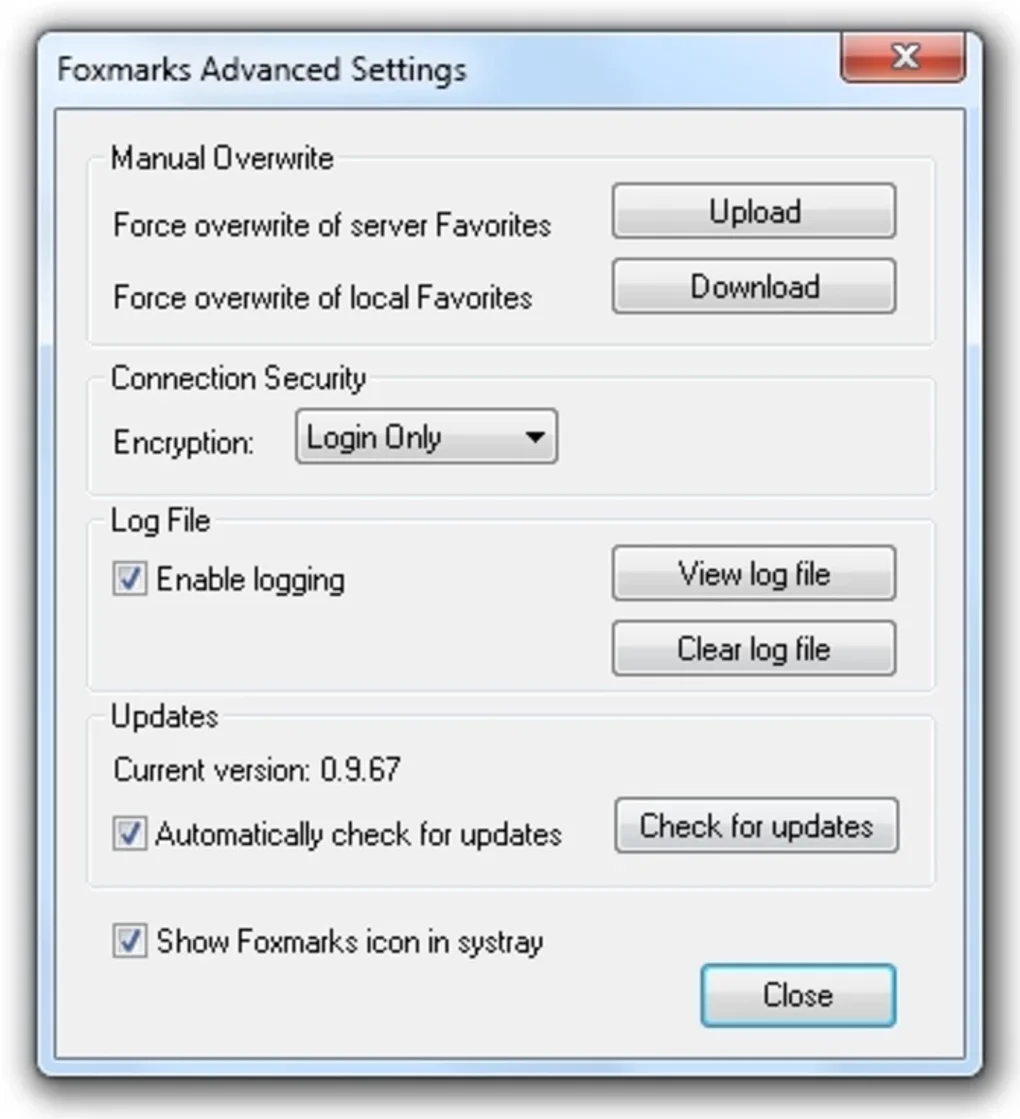
You can manually trigger a sync by right‑clicking the icon and selecting “Force Sync Now”. The “Settings” submenu gives you access to encryption level (default is AES‑256), profile management, and log files. For users managing multiple machines, create a separate profile for each device; Foxmarks will keep each profile’s bookmarks isolated while still using the same cloud account.
System Compatibility
Foxmarks Internet Explorer is compatible with the following Windows operating systems:
- Windows 7 (Service Pack 1) – 64‑bit and 32‑bit
- Windows 8 / 8.1 – 64‑bit and 32‑bit
- Windows 10 – all editions
- Windows 11 – all editions
The software requires .NET Framework 4.6 or higher, which is pre‑installed on Windows 10/11 and can be added easily on older versions. Internet Explorer 11 is the minimum browser version supported; older IE versions lack the necessary COM interfaces for reliable bookmark access.
Frequently Asked Questions & Final Thoughts
Is Foxmarks Internet Explorer really free?
Yes. The core synchronization service, including encryption and basic cloud storage, is completely free for personal use. Premium plans are optional and only needed for larger bookmark libraries or business‑grade support.
How secure is my bookmark data?
Foxmarks uses AES‑256 encryption for all data in transit and at rest. Your password never leaves your device, and the encryption key is derived locally, meaning the cloud provider cannot read your bookmarks.
Can I sync bookmarks between Internet Explorer and Chrome?
Direct cross‑browser sync is handled by the broader Foxmarks suite. If you install the Foxmarks extensions for Chrome and Firefox alongside the IE client, all three browsers can share the same cloud‑based bookmark set.
What happens if I uninstall Foxmarks?
Uninstalling removes the local tray icon and background service, but your bookmarks remain stored safely in the Foxmarks cloud. You can reinstall on any other machine and simply log back in to restore your data.
Is there a limit to the number of bookmarks I can sync?
The free tier allows up to 5,000 bookmarks per account, which is sufficient for most users. Premium subscriptions raise this limit to 50,000 bookmarks and include priority sync servers.
Conclusion & Call to Action
Foxmarks Internet Explorer fills a niche that many modern sync tools overlook: reliable, secure bookmarking for legacy browsers on Windows. Its free pricing, strong encryption, and unobtrusive system‑tray presence make it a practical choice for both individual power users and corporate environments still dependent on IE. While the lack of macOS support and the reliance on an internet connection are noteworthy drawbacks, the overall value proposition outweighs these limitations for anyone needing a hassle‑free way to keep their favorite sites in sync.
Ready to stop juggling export files and manual copy‑pastes? Download Foxmarks Internet Explorer now, set up your free account, and enjoy seamless bookmark synchronization across all your Windows PCs. Your browsing history will thank you, and you’ll regain control over the links that matter most.
Foxmarks Internet Explorer delivers a solid, secure solution for bookmark synchronization on Windows. Its intuitive setup, low resource usage, and strong encryption make it a top pick for anyone still using IE. The primary downside is the Windows‑only availability, but for its target audience the app works flawlessly.







